
Bulk Inventory Upload
Step 1: Go to the toolbar located on the left-hand side of the page and select “Import.”
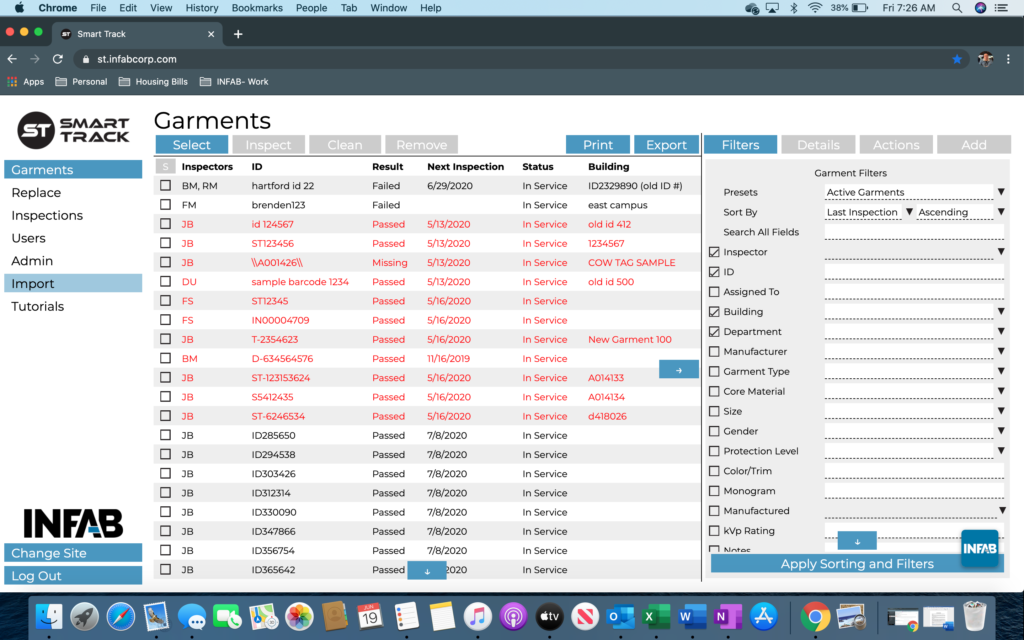
Step 2: Once you are on the “Import Garments” page you will want to download our Bulk Upload Template. This can be found on the right-hand side of the page. Press “Download Template.”
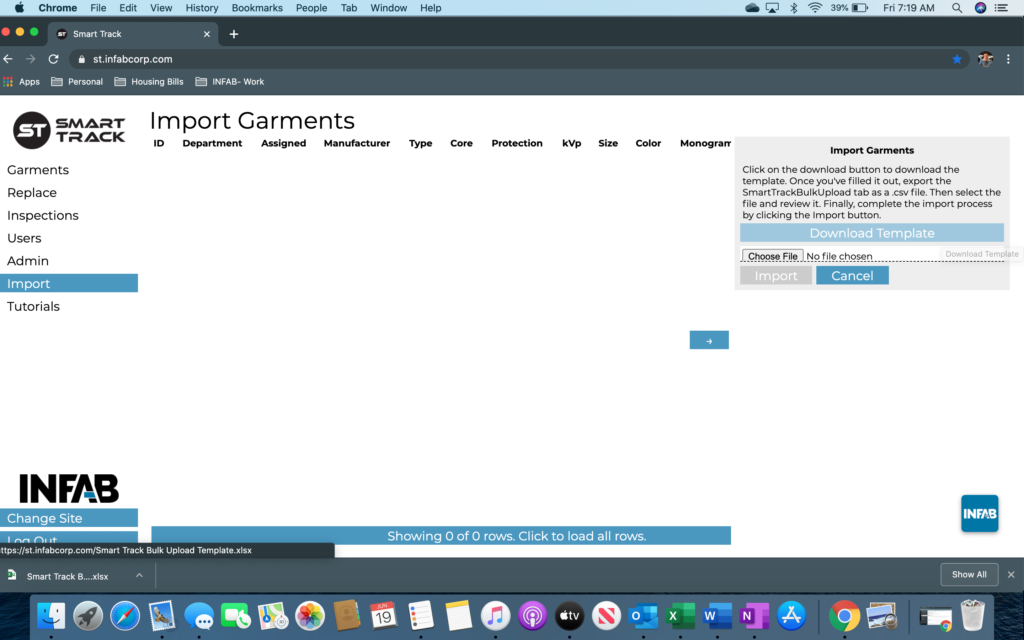
Step 3: You should see a pop-up appear of the requested excel file. This file will be located towards the button of your screen, click on this download to open up the template.
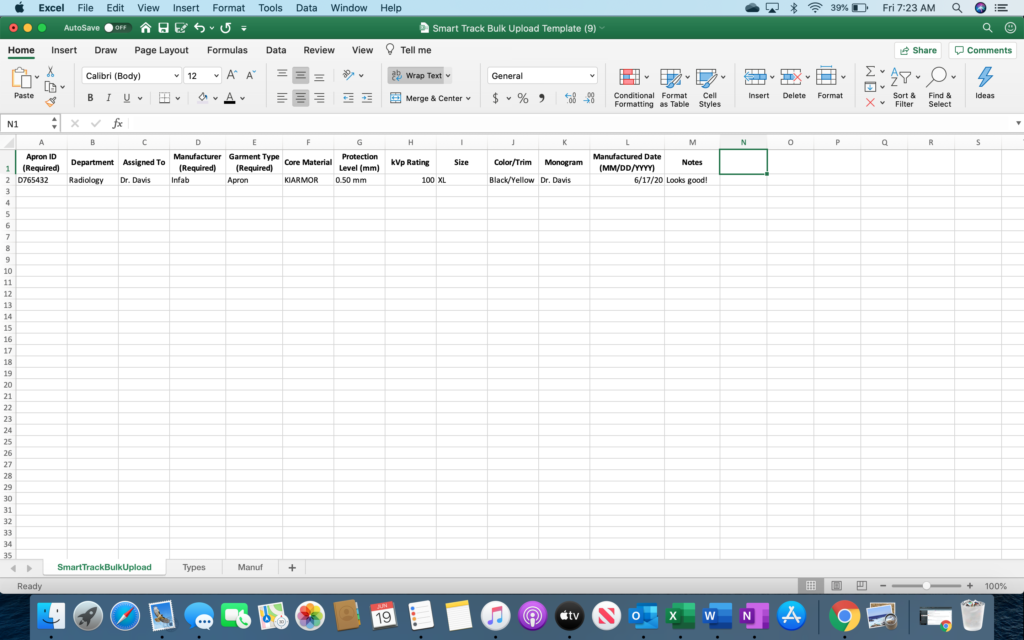
Step 4: Once you have the template open, you will be prompted to manually input the information for your garment. It’s best practice to add as much relevant information as possible to your garments. This will ultimately only help you when it comes time to inspecting or managing your inventory.
Step 5: Try to fill out as many fields as possible for all of your garments. The fields that are required are the Garment ID, the Garment Type, and the Manufacturer of the garment.
Step 6: Once you have uploaded all of your garments accurately, you can go ahead, and press save. Once you have saved this file, you can email it to smarttrack@infabcorp.com where we will review the data, make any adjustments if necessary, and complete the bulk upload on your behalf!
Step 7: Once it has been successfully uploaded onto your system, we will send you a confirmation email to notify you of the update.